

Reading your plan — Live Preview, Plan, Features, and Summary
Once your first draft exists, it opens into a workspace with four tabs, plus the persistent live mockup and toolbar beside it. This guide walks through what each one actually shows and what it's for.
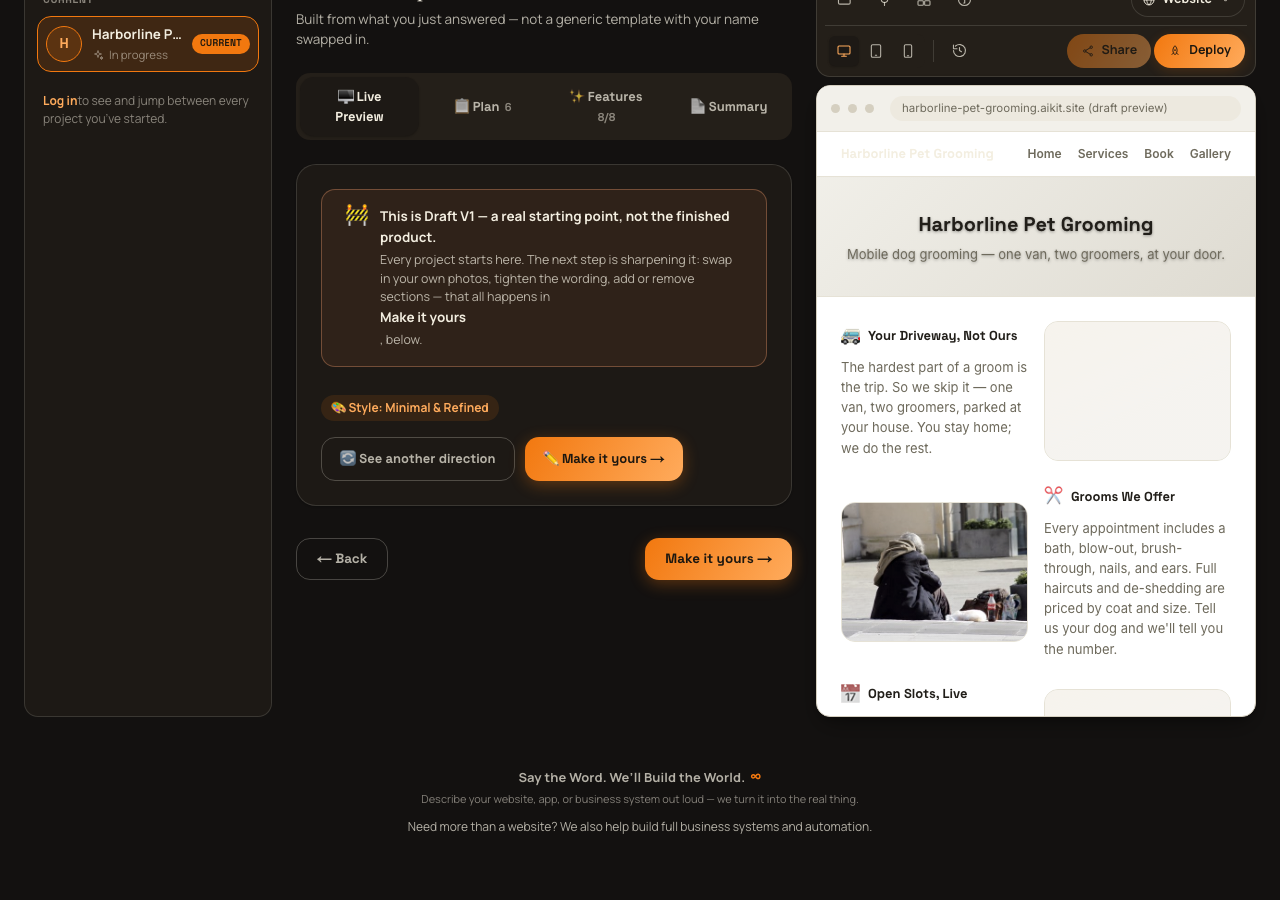
Live Preview tab
This tab is a framing card, not the mockup itself — the actual rendered draft lives in the persistent right-hand column beside it (see the "toolbar above your live mockup" guide for the controls around it). The card here is headed by a banner reading "🚧 This is Draft V1 — a real starting point, not the finished product," your current style shown as a tag ("🎨 Style: …"), and two actions: "🔄 See another direction," which cycles your draft through aiKit's other style options right there for quick comparison, and "✏️ Make it yours →," which takes you into the revision chat covered in "Revising your draft."
Plan tab
This tab opens with the same Project Plan panel used before you had a draft (see its own breakdown below), followed by a section-by-section outline of your actual generated draft: "📋 Section by section — adjust or remove anything." Each real section in your draft is listed with its icon, its label, its description, and a "Sample" badge if it's placeholder content aiKit invented because you hadn't given it the real version yet.
Every section has its own "💬 Adjust or remove this section" toggle button (it switches to "✕ Cancel" once open) that expands an inline editor right under that section — a textarea (placeholder: e.g. "Add our hours here too" or "Remove this section entirely") with a voice-dictation button, an "Exit without changing" option, and "Update this section →" to submit. Only one section's editor is open at a time, and only that one section updates — the rest of your draft is untouched.
The Project Plan panel — foundation, must-haves, and worth considering
This panel appears both before you have a draft (as the whole right column) and at the top of the Plan tab once you do. It opens with a status strip showing all four build stages with a real percent-complete bar for each — not a static checklist. Before a draft exists, the current stage's percentage is a genuine read of your filled-in fields; after a draft exists, it tracks the real share of your sections that are no longer flagged "Sample."
"The foundation" is a short paragraph framing why your project matters, written by AI once you've given it enough to work with — a skeleton placeholder shows while it's generating, and a "Try again" link appears if the call fails.
"Must-haves" lists the sections your project actually needs — before a draft exists these are AI-proposed section ideas with a one-line reason each; once a real draft exists, this list becomes your draft's real generated sections (zero extra loading, since it's just reading your actual content).
"Worth considering" surfaces feature opportunities specific to your business — before a draft exists these come from the same suggestion engine as Form mode's feature checklist; once a draft exists, this becomes your project's real feature plan (the same list you check and manage on the Features tab).
Every one of these three sections has its own lightweight "+ Add your own" row where you can type a free-form note or idea to append to that section. These are session notes for you to see while planning, not yet saved to your project record the way sections and features are.
Features tab
Headed "✨ Not just a website — the full system this business could run on," this tab lists every suggested feature as a checkbox row — only checked features get built into your plan. Each row also has a "💬 Expand" toggle that opens the same inline-editor pattern as the Plan tab's section adjuster (textarea + voice input + "Update this feature →") for asking for more detail on that one feature, and a trash-can delete button that removes it outright, no confirmation step.
Below the list, you can type your own feature idea directly (placeholder: "Have an idea? e.g. 'let customers pay a deposit online'") and add it to the plan, or tap "💡 Suggest more options" to have aiKit generate additional feature ideas with no seed text of your own.
A checkbox at the bottom, "Flag this project for extra guidance from our team as I go," lets you mark the project for closer attention.
Summary tab
A real-data snapshot of where your project stands right now: name, project type, style, status, audience, goal, description, your full list of sections (with Sample badges) and features (checked/unchecked), meant to be viewed on screen or downloaded to share with someone else — distinct from your live published link.
The "⬇ Download summary" button generates and downloads a real Markdown (.md) file built entirely from your actual project data — no invented content — named after your project (e.g. "acme-landscaping-summary.md"). There's no separate share action on this tab; sharing your live link happens through the toolbar's Share button instead.
Have a quicker, specific question instead? Check the FAQ.