

Scene StudioNew
AI video from your words, a photo or your own clip
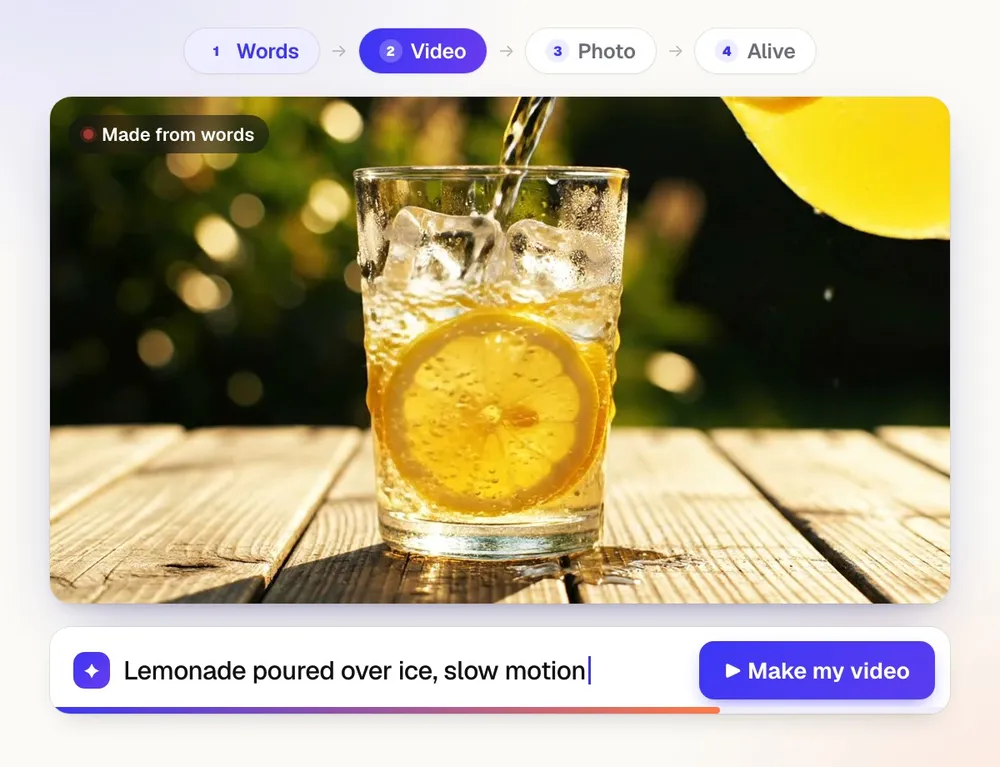
Scene Studio is aiKit's AI video generator: describe a scene, bring a photo to life, or give your own clip a new look. Ads and promos for business, funny clips and little stories for fun, with the cost on the button before every click.
Free account, no card. Already using aiKit? Log in to open Scene Studio

What you get
AI video from your words, a photo, or your own clip.
A voiceover in your own voice
Read the storyboard's voiceover lines in My voice, the AI voice you made in Voice Kit, or a stock voice. The tokens show first, and the voiceover goes to Video Kit together with your clips.
Three ways in
Describe it in your own words, animate a photo from your Graphics Library, or restyle a clip you filmed into a new look, scene or style.
Looks you click, with moving samples
Styles, 14 camera moves, effects and speed, lighting, color mood and sound. Point at a tile to see a real 4-second sample before you pick it.
The same characters in every scene
Add a person, mascot or pet from your own pictures once. Scene Studio keeps their face, outfit and colors the same from clip to clip.
Script and storyboard first
The AI script writer drafts the scenes from your idea. Reorder, add or remove scenes, set each length and transition, approve, then make them all.
Cost on the button
Every Make button shows the tokens before you press it. A clip that fails is given back automatically.
Ready for editing
Every clip saves to your Graphics Library. Download it, or send it to Video Kit to join scenes, add captions and music.
Every feature
Everything in Scene Studio
The complete list, from the tool as it works today.
- Three ways in: describe it, animate a photo, or restyle your own video
- Business and Fun & creative modes with ready ideas: ad scenes per industry, funny formats, stories, trends and dream worlds
- Visual looks you click: styles, 14 camera moves, effects and speed, lighting, color mood and sound
- My characters: a person, mascot or pet from your own pictures, kept the same across scenes
- An AI script writer: script types with hooks, tones and endings; attach a brief, look pictures, or a link whose feel you want
- Script & storyboard: reorder, add or remove scenes, set each length and transition, use your own pictures, approve, then Make all
- Longer videos: Continue the shot from a clip's last frame, then Join in Video Kit with every clip in order
- Engines picked for you (Auto) or by you, each with its cost on the button
- Every clip saved to your Graphics Library, with Download and Send to Video Kit or Motion Maker
- A voiceover for the whole video read in My voice (the AI voice you made in Voice Kit) or a stock voice, with the tokens shown first, then carried to Video Kit with your clips
What’s included
What you get with Scene Studio, and how it works with the rest of aiKit
Included with a free aiKit account
- Describe it, Animate a photo and Restyle my video
- Business and Fun & creative modes with ready ideas and looks to click
- My characters, kept the same across scenes
- The AI script writer and storyboard, with Make all
- Every clip saved to your Graphics Library, with Download
What uses AI, and what’s free
Each clip uses tokens, shown on the Make button before you press it; a failed clip is given back. Writing and changing the script and storyboard stills use a little of your monthly AI allowance. Picking looks, managing characters and downloading use none.
Works with your other aiKit tools
- Video Kit: Join in Video Kit opens every clip in order, ready for captions, music and voiceover.
- Graphics Library: Every clip saves to your Graphics Library, and Animate a photo starts from a picture already there.
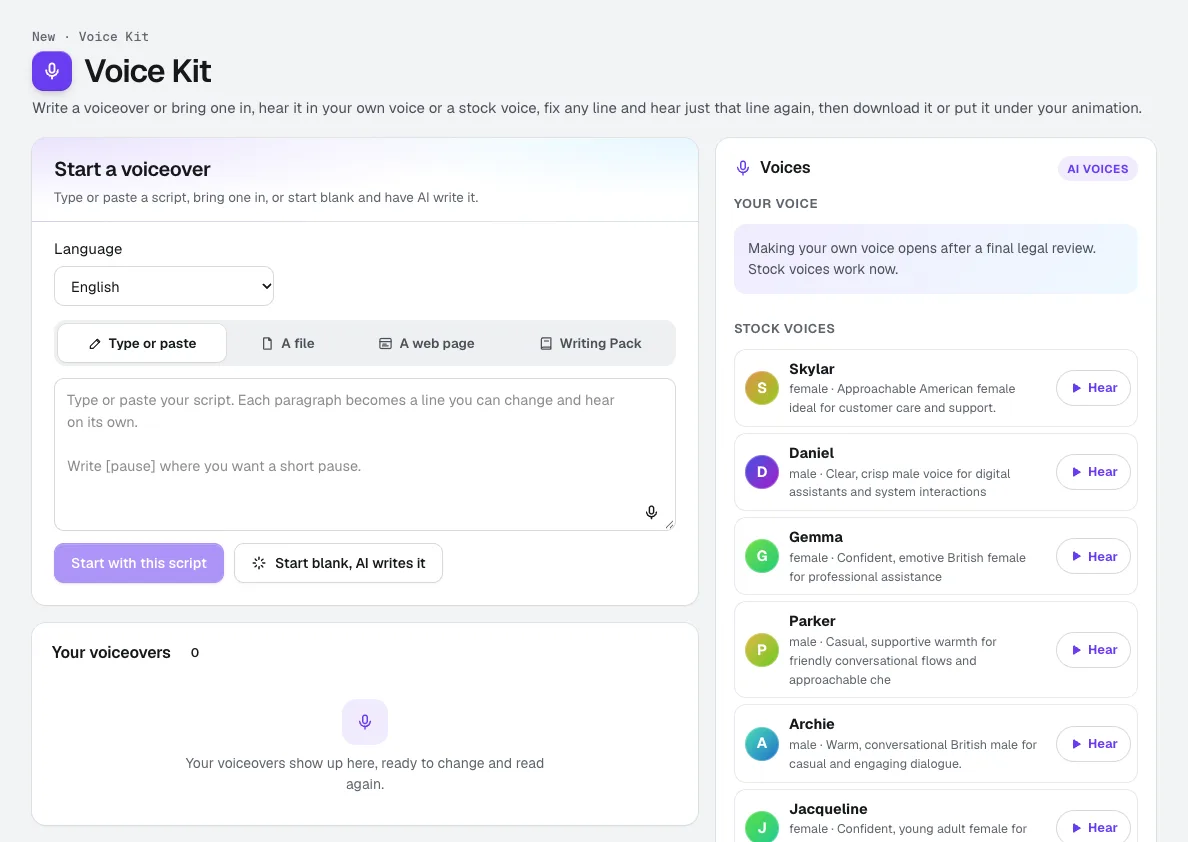
- Voice Kit: Read the voiceover lines in My voice or a stock voice right in the storyboard, or open them in Voice Kit to fix one line at a time.
- Motion Maker: Send a clip to Motion Maker to use it in an animated promo.
Keep Scene Studio in any of your kits, next to the tools you use with it. One monthly AI allowance covers every tool you add.
How it works
From first click to finished, in 5 steps.
1. Pick Business or Fun & creative
Business shows ad scenes for your industry; Fun & creative shows funny formats, stories, trends and dream worlds.
2. Describe it, or start from a photo or clip
Write what should happen in plain words. Put spoken words in quotes to have them said.
3. Click the looks you like
Add a style, a camera move, an effect, lighting, a color mood or sound. Each pick adds its words to your video.
4. Choose shape and length, then Make
Tall for reels and stories, wide for YouTube and websites, square for feeds. Auto picks the right engine and says why.
5. Use it
The clip lands in your Graphics Library in a few minutes. Download it, make another take, continue the shot, or send it to Video Kit.
Who it’s for
How different businesses use Scene Studio
A sizzling product shot for a menu ad
A burger shop animates its own food photo with a slow push in and rising steam, then adds its logo and price in Video Kit.
A before-and-after reel
A landscaping company describes a yard turning from overgrown to tidy with a drone fly-over, and posts the tall clip as a reel.
Storyboards clients can approve
An agency drafts a 20-second ad script, shows the client the storyboard stills, and makes the clips only after approval.
A mascot that stays the same
A creator adds their cartoon mascot once and makes a weekly series where it looks the same in every episode.
A twilight listing teaser
An agent restyles a phone clip of a house into a warm twilight look with a slow dolly move for the listing post.
Ideal for
- Businesses that need a quick ad or product clip without a film crew
- Creators making funny clips, trailers, music videos or kids' stories with the same characters every time
- Anyone who wants to bring a photo to life or give their own clip a whole new look
Good to know
- Not for: Long videos in one go (make scenes, then join them in Video Kit)
- Not for: Videos of real people without their permission
- Not for: Editing, trimming and captions (use Video Kit)
- Each clip uses tokens, shown on the Make button before you press it. A clip that fails is given back automatically.
- Clips are 4 to 15 seconds depending on the engine; square videos and clips over 8 seconds use the Longer & square engine.
- Quick draft and Everyday work on the Free plan; the other engines are on paid plans.
- AI video can get hands, text and fast motion wrong. Make another take or change the words.
- Every clip carries the engine's invisible AI watermark.
- Restyle my video, Longer & square and Same character show "not switched on" until their video service is connected.
Good to know
Before you use Scene Studio
Real people need permission. Only use faces, voices, and names of people who agreed (and a parent or guardian for anyone under 18). No fake endorsements. Label AI-made video and pictures as AI. AI video can have glitches in faces, hands, and text.
Questions
Scene Studio: questions people ask
Can I use my own voice for the voiceover on an AI video?
Is there an AI video generator that turns a photo into a video?
How do I keep the same character in every AI video scene?
Can AI make a short video ad for my business?
Can I put a real person in an AI video?
Can Scene Studio run on my own AI account instead of aiKit tokens?
How do I keep characters looking the same across Scene Studio stills?
How do I make an AI video in aiKit?
My animated photo came out zoomed in. How do I keep the whole picture?
How do I know which Scene Studio engine to use?
Can I keep the same character in every scene of my video?
Can Scene Studio write the script for my video?
How do I make a longer AI video than one clip?
How much does an AI video cost in aiKit?
Can I use something I made in one aiKit tool in another tool?
Works well with
Tools to add to the same kit
Video Kit
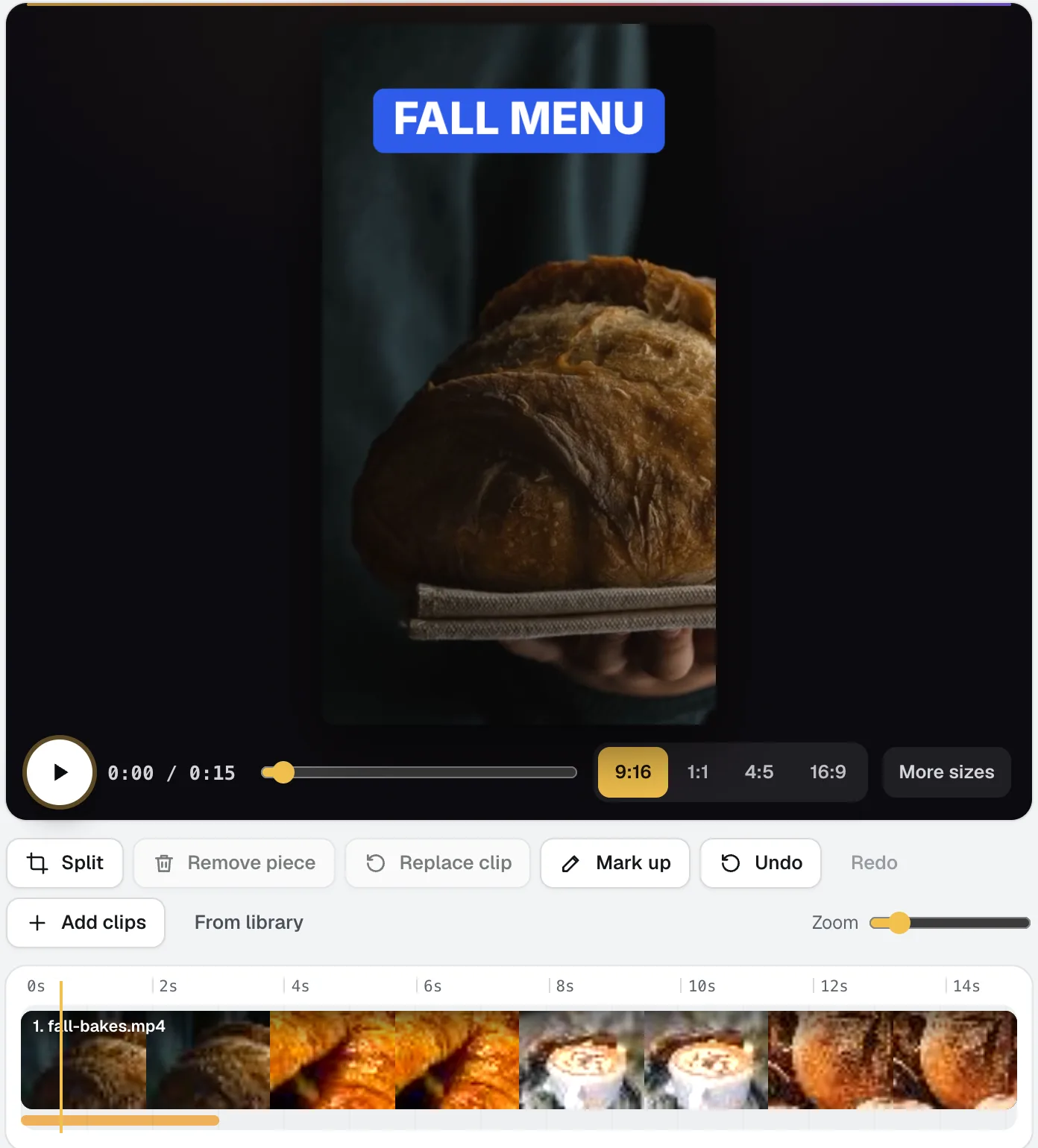
NewVideo Kit is an AI video editor for social media: drop in your clips and edit them like a document. Delete words to cut the video, remove pauses and ums in one pass, and Ask for changes in plain words. Captions, sizes, music and your logo are built in.
Motion Maker
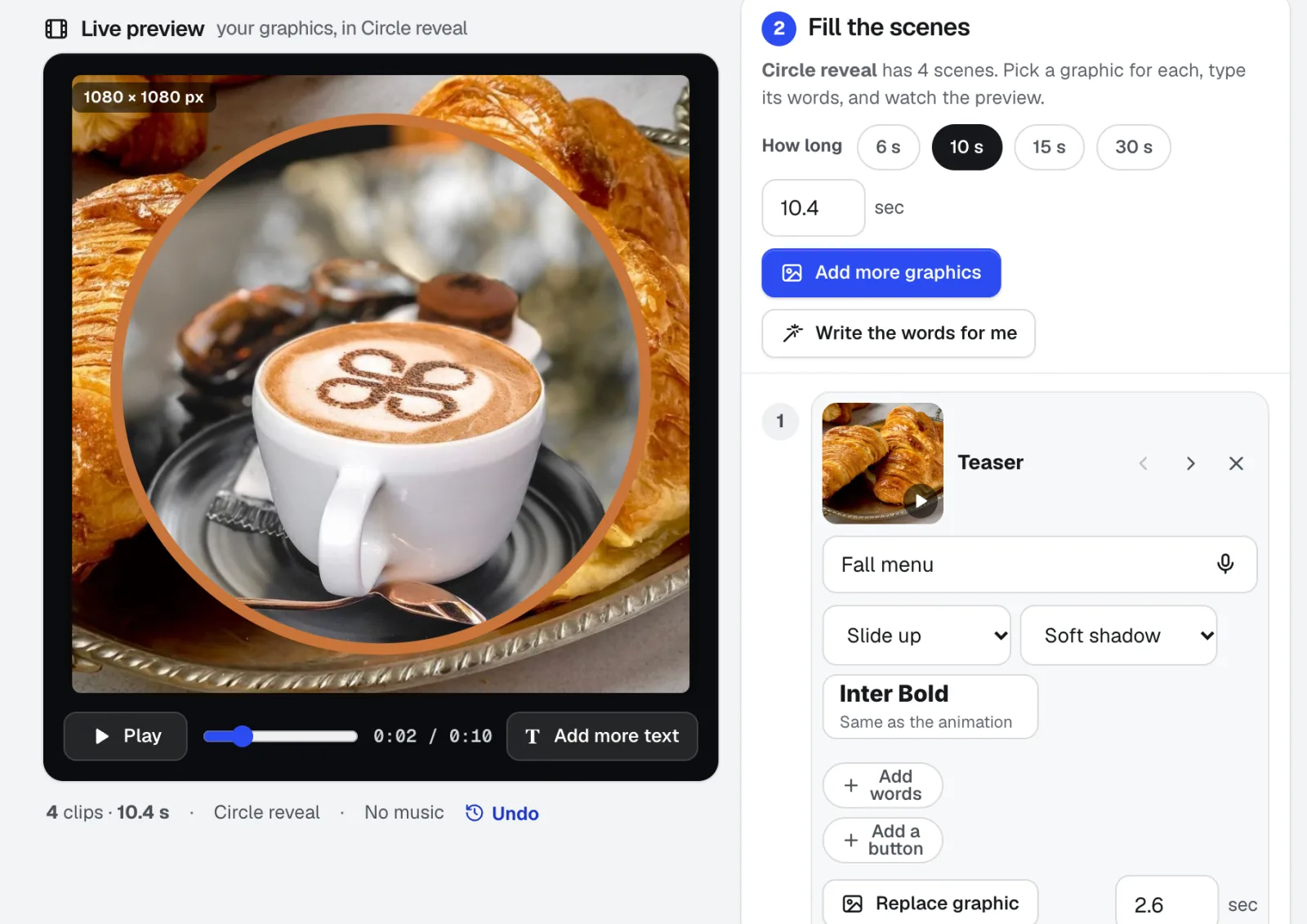
NewAn animated GIF maker for email, plus banners and promo clips: pick one of 29 animation styles, drop in your photos, type the words right on the stage, and add music cut on the beat. Export an MP4, WebM or email-ready GIF straight from your browser.
Voice Kit
Your voiceRecord about a minute, confirm it is your own voice, and aiKit makes an AI voice of you. Read scripts, ads and animation voiceovers in it, fix any line and hear only that line again, and see the tokens before anything runs.
Use Scene Studio today.
Make a free aiKit account and open Scene Studio, plus every other tool in your kit.
Page last checked against the product on 2026-10-27.