Skip to content
Your all-in-one AI platformStart free

Graphics LibraryNew

Find the right logo or photo in seconds, not folders

Graphics Library is digital asset management software for teams: every client's and project's logos, photos and design files in one labeled place. Drop in whole folders, label hundreds at once, and anyone on your team finds the file they need.

Free account, no card. Already using aiKit? Log in to open Graphics Library
aiKit · Graphics LibraryExample
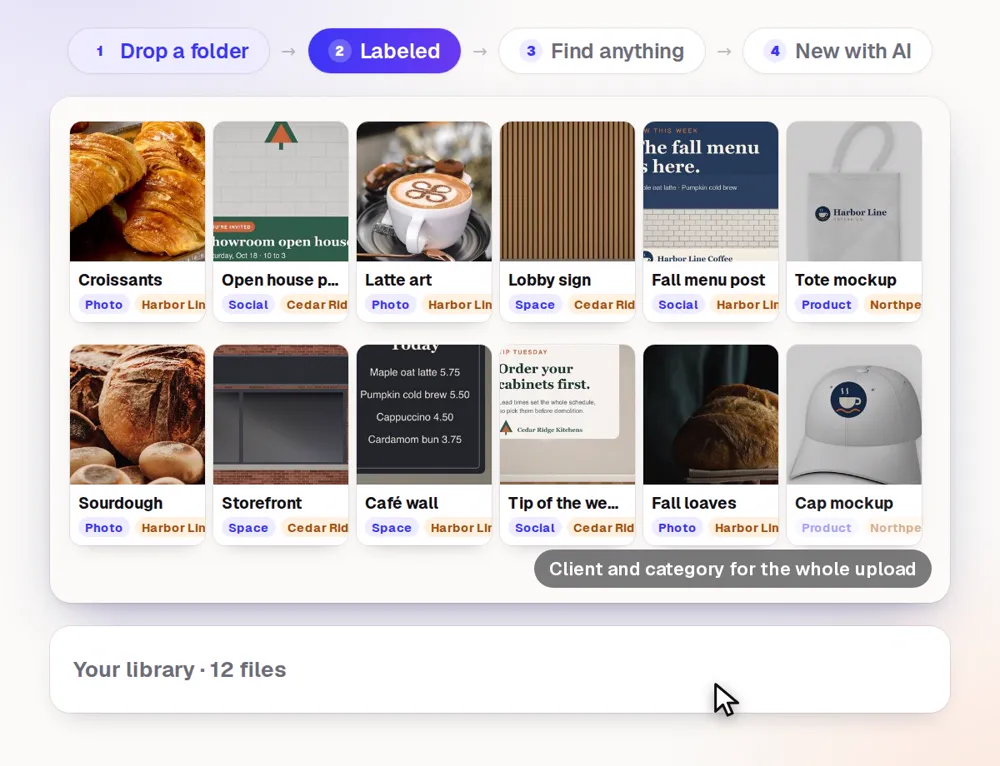
Graphics Library uploading a dropped folder of 12 files, labeled by type and client for the whole upload, narrowing to one client's files with a search, and opening a post to see where it is used

What you get

Upload whole folders of logos, photos, and design files, label hundreds at once with suggestions, and find any graphic in seconds.

Whole folders in one drop

Drag files or entire folders onto the page. Three upload at a time, each with its own progress, and folder names inside folders are kept.

Duplicates caught before they upload

aiKit compares the pictures themselves, not just file names, so a resized or renamed copy of the same photo is flagged before it takes space.

Label hundreds in one step

Set client, project, categories, tags and rating for a whole upload at once. Suggestions come from folder names and from the pictures, and nothing is added until you click.

Search that knows what's in the picture

Search file and folder names, tags, alt text and descriptions, and filter by use (Logo, Social post, Print file, Photo and more), client, project, main color, shape and size.

Undo anything, even days later

Every label, move and delete is kept in a team history. Undo puts the earlier values back without wiping out newer work, and deleted graphics wait in the Trash for 30 days.

One library for every tool

Magic Canvas, Pro Designer, Mockup Studio and project pages pick pictures straight from the library, and finished designs save back into it.

Every feature

Everything in Graphics Library

The complete list, from the tool as it works today.

  • Drag-and-drop upload of many files or whole folders, with progress and retry for each file
  • Duplicate warnings that compare the pictures themselves, not just file names
  • Client, project, category, and tag labels for a whole upload at once, with suggestions from folder names and from the picture
  • Search, filters, saved views, and a link to every graphic and every filtered view
  • Alt text for websites, suggested and editable

What’s included

What you get with Graphics Library, and how it works with the rest of aiKit

Included with a free aiKit account

  • The Graphics Library itself, with every upload, label, search, filter and share link
  • Files up to 25 MB each (music up to 15 MB each), and up to 2 GB for each team
  • Photos, logos, design files (PSD, AI, EPS, PDF, SVG), short videos and music
  • Duplicate checks before upload and a Find duplicates clean-up, with no AI involved
  • Label suggestions from file and folder names, free on every upload
  • Team history with Undo, and a Trash that keeps deleted graphics for 30 days

What uses AI, and what’s free

Uploading, labeling by hand, search, filters, duplicate checks, share links, zip downloads and the Trash use no AI. Suggestions from file and folder names are free. On browsers that support it, Suggest labels and Enlarge 2× run on your own computer at no cost. When label suggestions come from aiKit's AI instead, they use your monthly AI allowance, and each team also has a monthly limit on AI suggestions.

Works with your other aiKit tools

Keep Graphics Library in any of your kits, next to the tools you use with it. One monthly AI allowance covers every tool you add.

How it works

From first click to finished, in 4 steps.

  1. 1. Drop in your files

    Drag files or whole folders onto the page, or paste a copied picture. Images, design files (PSD, AI, EPS, PDF, SVG) and short videos are accepted, up to 25 MB each.

  2. 2. Label the whole batch

    Pick the client and project (or make a new one on the spot), add categories, tags and a rating, and review suggestions from folder names and the pictures.

  3. 3. Find it later

    Search or filter, open any graphic full size, and set a focus point so it crops well as a square, portrait, wide banner or link preview.

  4. 4. Use and share it

    Add graphics to a project, download many as a zip, or send a teammate the link to a graphic or a filtered view.

Who it’s for

How different businesses use Graphics Library

Marketing & agencies

Every client's brand files, sorted

Northlight Studio uploads a new client's folder of 300 photos, tags them all "storefront" in one step, and later finds the five best landscape shots for a homepage in a few clicks.

Print, promo & signs

Customer logos without the inbox search

Harbor Line Print Co. keeps every customer's logo versions under that customer, so the next reorder starts from the approved file instead of an old email.

Real estate

Listing photos by property

A brokerage files each listing's photos under its own project, with alt text for the website and a focus point so the front of the house stays in every crop.

Retail, restaurants & e-commerce

Product photos, approved and findable

Copper Kettle Coffee keeps product, team and location photos together, marks the best as Approved, and hides the ones it no longer uses from every picker.

Education & training

Shared graphics for a training team

A training center's staff find the current course logos and event photos themselves, with Find duplicates clearing out years of copies.

Ideal for

  • Agencies and freelancers holding logos and photos for many clients
  • Businesses with folders of product, team, and location photos
  • Teams handing graphics to whoever builds the next page or post

Good to know

  • Not for: Editing pictures or video; it stores, labels, and finds them (MP4, MOV, M4V, and WebM videos included)
  • Each file can be up to 25 MB, and each team can keep up to 2 GB.
  • Suggestions describe what the picture shows and can be wrong. Nothing is added until you pick it.
  • Previews come from the file itself: PSD files and Illustrator-made AI, PDF, and EPS files show one; other PDF and EPS files and HEIC photos outside Safari are kept as uploaded with a file icon.

Good to know

Before you use Graphics Library

Stock images and fonts have licenses. Check a license before you use a stock image or font in a trademark, a product for resale, or a print product. Keep your own copy of important files.

Questions

Graphics Library: questions people ask

Is aiKit's Graphics Library digital asset management software for agencies?
Yes. aiKit's Graphics Library is digital asset management software built for teams that hold files for many clients, which is how most agencies work. Every graphic can carry a client, one or more projects, categories, tags, a rating and alt text, so one client's approved logos are a filter away instead of a folder hunt. Whole folders upload in one drop, duplicates are caught by comparing the pictures themselves, and a whole upload can be labeled at once. Every graphic and every filtered view has its own link, so an account manager can send a designer exactly the set they need. aiKit's design, video and writing tools pick from the same library, so files are uploaded once and used everywhere.
How does a shared photo library keep marketing files easy to find?
In aiKit's Graphics Library a photo can belong to a client and several projects at once, and search reads file and folder names, tags, alt text and descriptions. Filters narrow by use (Logo, Social post, Print file, Photo and more), main color, shape and size. Duplicates are flagged before they upload, so the library stays clean. Before a graphic is deleted, aiKit shows where it is used, and deleted graphics wait in the Trash for 30 days. The Graphics Library is built for the logos, photos and design files your team reuses, so everyone works from the current version.
Is there a free digital asset management tool for teams?
Yes. aiKit's Graphics Library is included with a free aiKit account. Each file can be up to 25 MB and each team can keep up to 2 GB. Uploading, labeling, search, filters, saved views, share links, the Trash and the team history all work with no AI involved. Suggestions from file and folder names are free, and on browsers that support it, Suggest labels and Enlarge 2× run on your own computer at no cost. When label suggestions come from aiKit's AI instead, they use your monthly AI allowance, and nothing is added to a graphic until you accept it. Photos, design files such as PSD, AI, EPS and PDF, short videos and music files are all accepted.
How do I organize brand assets by client and project in aiKit?
In aiKit's Graphics Library, set the client and project while you upload: pick them in the upload window, or add a new client or project right there, and the whole batch is labeled. A graphic can sit in more than one project, so a logo used across several campaigns is kept once instead of copied. The Showing row at the top switches between All, each client, and No client, and a client with projects gets a row of project chips. It is the same switch as Working on in the sidebar, so Motion Maker's picker shows that client's graphics too. Add categories, tags and a rating (Approved, Best or Not using) to sort further, and save any view to come back to it in one click.
Does the Graphics Library work with other aiKit tools?
Yes. Select graphics in aiKit's Graphics Library and choose Send to Motion Maker to open them on Motion Maker's timeline in the order you picked, or Use in a blog post to open Content Kit with that picture ready as the post's main photo. Presentation Builder, Mockup Studio, Magic Canvas, Pro Designer and Email Studio pick pictures straight from the library, and project pages have their own Graphics tab. Finished work comes back too: Motion Maker and Video Kit save exported files to the library, with tags. Because every tool reads the same library, a logo uploaded once is ready in every tool, and the library shows where each graphic is used before you delete it.
Can I store videos and music files in a shared media library?
Yes. aiKit's Graphics Library keeps MP4, MOV, M4V and WebM videos up to 25 MB, and MP3, M4A and WAV music up to 15 MB, next to your photos and logos. Videos get a poster frame made in your browser and play in their details, and music shows a waveform as its picture. Both take the same client, project, tag and category labels as any graphic, so search and filters find them too. Motion Maker and Video Kit pick music and clips from the library, and finished videos from either tool save back into it. AVI and MKV files need converting to MP4, MOV or WebM before they upload.
Can I keep PSD, AI, and EPS design files in the same library as photos?
Yes. aiKit's Graphics Library accepts PSD, AI, EPS, PDF and SVG files alongside JPG, PNG, WebP, HEIC and other photos, up to 25 MB each. Previews come from the file itself: PSD files and Illustrator-made AI, PDF and EPS files show a picture of the design, and a PDF's thumbnail is page 1. Other PDF and EPS files are kept exactly as uploaded with a file icon. Label design files with the same client, project and tags as the photos, set their type to Print file or Logo, and download the original whenever a printer or designer asks for it. To send a whole set, select many and download them as one zip.
How can my team find the current logo without asking around?
Put the logos in aiKit's Graphics Library and label them once. Set each one's type to Logo and its client, mark the current versions Approved or Best, and mark old ones Not using, which hides them from every picker. Then anyone on the team opens the library, picks the client in the Showing row and filters by Logo. Every filtered view has its own link, so you can bookmark one client's approved logos or paste that link in a team chat, and saved views reach it in one click. The same logos appear in the pickers of aiKit's design tools, so the right file goes into every new design, flyer and post.
Can I use any file from the Graphics Library commercially?
Only if you have the right to. Files you upload stay yours, and stock images and fonts have their own licenses. Check the license before you use one in a trademark, a product for resale, or a print product. Keep your own copy of important files.
Can the Graphics Library run on my own AI account instead of aiKit tokens?
Yes, on any paid plan. Add the API key from your own AI account in Settings → Your AI keys, and pictures the Graphics Library makes with a model your key covers run on your own account (the picture menu says "your … key" next to those models): 0 aiKit tokens, billed by the AI company directly. Free accounts can try it on 3 runs. If your key stops working, the Graphics Library tells you why and never switches to tokens on its own.
Can I make a new picture with AI right in the Graphics Library?
Yes. Press New with AI next to Upload in the Graphics Library. Describe the picture, pick Square, Wide or Tall, tick Words in the picture if it needs lettering, and pick the picture model (ChatGPT Image unless you choose another; Ideogram spells words best). The cost in tokens shows on the Make it button before it runs. You see the picture first; Make another tries again, and Save to library puts it in the Made with AI folder, where the Source filter marks it Made with AI. A picture that fails uses no tokens.
Does aiKit use free AI on my own computer?
Yes, where it does the job as well. In the Graphics Library, Suggest labels (category, tags, alt text, description, and quality) and Enlarge 2× run on your own computer with small open-source models, so they cost nothing and your pictures stay on your device; only the finished labels or the new picture are saved. The first time, each sets itself up once (about 150 MB for labels, 8 MB for enlarging), then starts at once. It needs a browser with graphics support (recent Chrome, Edge, or Safari on most computers); when that isn't there, labels use aiKit's AI as before. Writing, quotes, print checks and website edits stay on aiKit's main AI, where quality matters most.
What is the aiKit Graphics Library?
Graphics Library is where a team keeps its logos, photos, and design files, labeled so anyone can find the right one fast. Open Graphics in the sidebar. You can drop in a whole folder at once, and each graphic can carry a client, one or more projects, categories, tags, a rating (Approved, Best, or Not using), and alt text for websites. Search reads file and folder names, tags, alt text, and descriptions, and filters narrow by how each graphic is used (Logo, Web graphic, Social post, Print file, Photo, Icon, Illustration, or Document), client, project, whether it is used anywhere, file type, source, category, tag, main color, shape, size, date added, who added it, and what still needs doing. Each graphic's details also show Looks similar, other graphics whose pictures are closest to it. For example, an agency can upload a client's folder of 300 photos, tag them all "storefront" in one step, and later find the five Best landscape shots for a new homepage in a few clicks. Every graphic and every filtered view has its own link to share with a teammate.
How do I upload a lot of graphics at once in aiKit?
In Graphics Library, press Upload, or drag files or whole folders anywhere onto the page; you can also paste a copied picture. Folders inside folders keep their names. JPG, PNG, WebP, GIF, HEIC, AVIF, BMP, TIFF, SVG, AI, EPS, PSD, PDF, and MP4, MOV, M4V, or WebM videos are accepted, up to 25 MB each, and each team can keep up to 2 GB. Three files upload at a time, each with its own progress, and a file that stops shows Retry, which sends only the missing parts. Before, during, or after uploading, set what applies to the whole batch: client, project (or a new one, made right there), categories, tags, and rating; files already sent are updated too. Same as last batch reuses your previous choices, and folder names are offered as one-click suggestions, so a folder called "Maple Street Bakery" suggests that client. When the upload finishes, Review this upload shows only those files, ready to label together. Videos get a poster frame made in your browser and play in their details; AVI and MKV files, and converting clips to a web format, are Coming soon.
Does aiKit catch duplicate images when I upload?
Yes. Before each file uploads, aiKit compares it with every graphic you can see and with the other files in the same upload. It compares the pictures themselves, not just the names, so the same photo saved as a new file name, resized, or exported again is still caught. A match pauses that one file and shows the graphic it matches with its preview, labeled Same file as or Looks like. Choose Skip or Upload anyway for each, or use Skip exact copies and Upload all look-alikes to decide for the whole upload at once. Everything else keeps uploading while you decide. Different crops of the same scene can count as different pictures, so a close variation may upload without a warning; the Looks like check is tuned to avoid flagging pictures that are only similar in style.

Use Graphics Library today.

Make a free aiKit account and open Graphics Library, plus every other tool in your kit.

Page last checked against the product on 2026-11-12.