

Presentation BuilderNew
A finished presentation from your notes, files and photos
An AI presentation maker that starts from what you have. Say what the deck is for, add what you already have, and get slides with speaker notes that you can click and type into, present, share as a live link, or download as PowerPoint.
Free account, no card. Already using aiKit? Log in to open Presentation Builder

What you get
Pitches, proposals, lessons, school projects and training decks.
Built from what you give it
Add PDF, Word, text and web-page sources and your own photos; your photos are used first. When a slide needs a number you didn't provide, it writes a clear "fill in" instead of inventing one.
See the plan before it builds
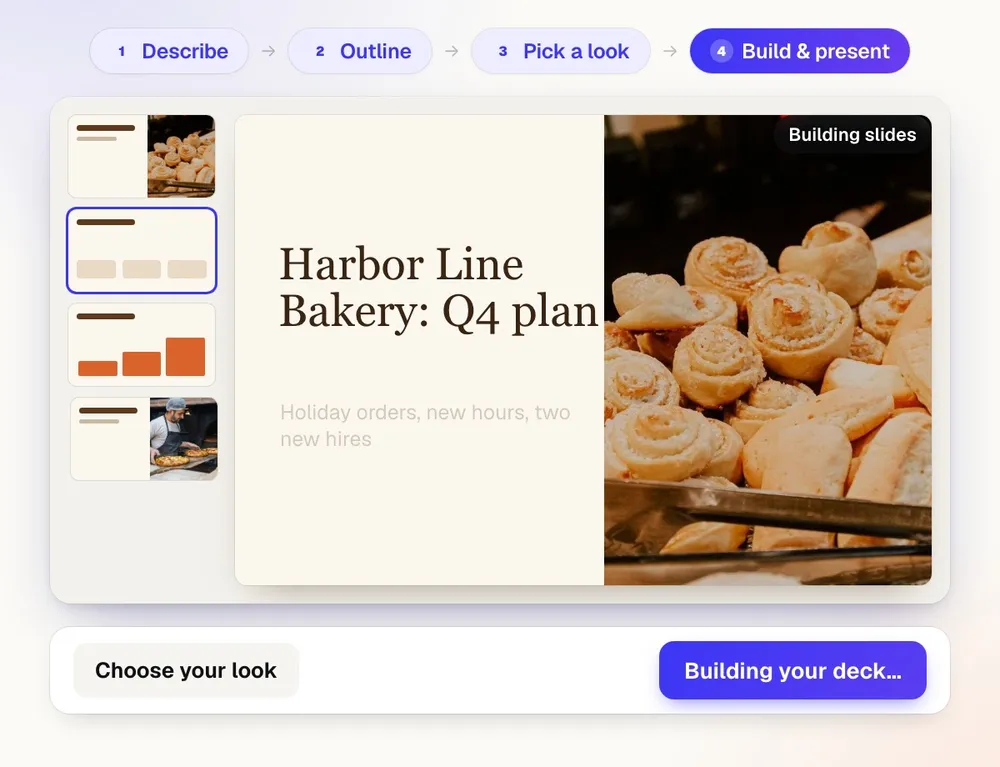
Check slide titles, order and slide types, change anything, then press Build. Thirteen slide types include compare, steps, big numbers, chart, table and quiz.
Edit by clicking or by asking
Click any text on a slide to type, or tell the AI what to change in plain words. Every AI change is saved as a version you can go back to.
A real PowerPoint file
Download a .pptx with editable text, charts, tables, pictures and speaker notes, save a PDF with one slide per page, or share a live link that always shows your newest version and counts its opens.
Practice and present on time
Every slide gets speaker notes and a time. Present full screen with a countdown per slide, or rehearse in Practice and see your pace, filler words and the key points you skipped.
Made for classes too
Lessons get quiz slides and a recap. Students can use a self-paced Student view, and a rubric check scores the deck line by line with a fix for each.
Every feature
Everything in Presentation Builder
The complete list, from the tool as it works today.
- Seven starting points (pitch, client proposal, lesson, school project, training, report, story) that shape the slides, plus how many minutes you have and who is watching
- Start by typing or talking, and add PDF, Word, text or web-page sources and your own photos; your photos are used before anything else
- A plan you can edit (titles, order, slide types) before anything is built, then 13 slide types: title, section, bullets with a picture, cards, compare, steps, big numbers, full picture, quote, chart, table, quiz and closing
- Click any text on the slide to type, or tell the AI what to change in plain words; every AI change is saved as a version you can go back to
- Speaker notes and a time for every slide, a full-screen present mode with a pace timer, clickable quiz slides, and a check against your rubric or checklist with a fix for each line
- Download as PowerPoint (real text, charts and tables you can edit), save as PDF, or share a live link that always shows your newest version, with a count of opens
- Your PDF or PowerPoint is the source of truth: read in your browser at any size, one slide per page if you like, your wording and your own pictures kept in place. Edit by deleting and dragging slides, clicking text, changing pictures, or highlighting words to reword just those. Sound and video on slides (record your voice, upload a clip, or paste a YouTube or Vimeo link), build-in animations, Auto-play narration that presents the deck by itself, and live captions while you speak. Bring your own: import a PowerPoint (.pptx, .ppsx and the other PowerPoint formats, any size) and either keep your slides as they are or have the AI rebuild it; Keynote, Google Slides and LibreOffice export to PowerPoint first. Keep it current: update from new numbers (only the affected slides change), re-brand with one click, and make a copy rewritten for another audience
- For classes: a Student view that turns the deck into a self-paced lesson (read aloud, a “Got it” check on every slide, quizzes that must be answered, a personal study plan) with progress kept on the student’s own device, an optional AI tutor that answers only from the slides (off by default, capped per day on your tokens), plus a printable study guide
What’s included
What you get with Presentation Builder, and how it works with the rest of aiKit
Included with a free aiKit account
- Seven starting points: pitch, client proposal, lesson, school project, training, report and story
- 13 slide types, with speaker notes and a time for every slide
- Present full screen with a pace timer, and Practice with pace and filler-word feedback
- A live share link, a self-paced Student view, and PowerPoint (.pptx) and PDF downloads
- Import a PowerPoint and keep its slides as they are, with no AI
- Every AI change saved as a version you can go back to
What uses AI, and what’s free
Building a deck, asking the AI for changes, Update from new info, a version for another audience, the rubric check, adding stock photos and reading some source files use your monthly AI allowance, and you see an estimate before a build starts. Clicking to type, dragging slides, presenting, Practice's pace and filler-word checks (they run in your browser), the share link, the Student view, imports that keep your slides, and the PowerPoint and PDF downloads use no AI. The optional Student AI tutor is off by default and uses your allowance up to a daily limit you set.
Works with your other aiKit tools
- Quote Studio: Proposal deck on a quote builds a client presentation from its real line items, timeline and terms, never its private notes or costs.
- Video Kit: Video Kit turns a deck into a video, one piece per slide, with the speaker notes read aloud as the narration.
- Lesson Kit: Lesson Kit makes slides for a lesson in Presentation Builder and links straight to them.
- Graphics Library: Put any picture from your Graphics Library on a slide.
- Vectorize Kit: Brand kits saved in Vectorize Kit show up as looks that use your brand colors.
Keep Presentation Builder in any of your kits, next to the tools you use with it. One monthly AI allowance covers every tool you add.
How it works
From first click to finished, in 5 steps.
1. Say what it's for
Pick pitch, client proposal, lesson, school project, training, report or story, then type or say the goal, who is watching and how many minutes you have.
2. Add your material
Drop in PDFs, Word files, links, notes and photos, or import a PowerPoint and keep its slides as they are.
3. Check the plan and pick a look
Change titles, order or slide types, choose a theme, and press Build. You see an estimate first and each step while it works.
4. Polish it
Click to type, ask the AI for changes, swap pictures from your Graphics Library or free stock photos, and fill in anything marked "fill in".
5. Present, share or download
Present with the pace timer, turn on the live link, or download PowerPoint or PDF.
Who it’s for
How different businesses use Presentation Builder
A client proposal from a call and a brief
An agency adds the client's brief as a PDF and its own case-study photos, picks Client proposal, and has a 12-slide deck with a pricing table placeholder ready to fill in before the follow-up call.
A lesson with quiz slides
A middle-school teacher types the unit topic and adds a reading as a PDF. The Lesson kind adds learning goals, a quiz after each section and a recap, written at the level of the audience she picked.
Training a new crew
A roofing company turns its safety checklist into a Training deck with step slides and speaker notes, then shares the live link with new hires.
A quote that becomes a pitch
A promo products shop opens a quote in Quote Studio and presses Proposal deck. The deck shows what's included, the timeline and the real line items, with no private notes or costs.
A workshop deck from an old PowerPoint
A consultant imports last year's workshop deck, makes a copy rewritten for executives, and updates the numbers from a new report so only the affected slides change.
A neighborhood guide for buyers
An agent adds area notes and her own photos, picks Story, and presents a short guide at a buyer meeting with the pace timer running.
Ideal for
- Owners and sales teams writing pitches and client proposals
- Teachers building lessons with quiz questions and a recap
- Students who want a project deck with real sources and a rubric check
- Trainers and managers explaining a process step by step
Good to know
- Not for: Making up facts: it only uses what you give it and marks anything missing as “fill in”
- Not for: Video editing or animation (Motion Maker does that)
- The AI can get things wrong. Read every slide and fill in anything marked “fill in” before you present.
- There is no MP4 download in Presentation Builder; Video Kit can turn a deck into a video (one piece per slide, speaker notes read aloud), and a Make a video button here is coming next. Animations, audio and video inside an old PowerPoint are not carried over.
- Pictures come from your uploads, your Graphics Library, and free stock photos; AI-made pictures are coming next.
Good to know
Before you use Presentation Builder
Check every number and claim. AI can invent facts, numbers, quotes, and sources. Look up every fact and link before you rely on it. Read each slide before you present it.
Questions
Presentation Builder: questions people ask
Is there a free AI presentation maker?
What's included in aiKit's Presentation Builder?
Can an AI pitch deck maker build the whole deck from my notes?
How do I make a client proposal presentation for my business?
Can AI make training slides for new employees?
Can Presentation Builder use my brand's voice and colors?
What can I build a presentation from: PDFs, Word files, web links or photos?
Can AI make a presentation with charts and tables from my numbers?
What should I check in an AI-made presentation?
Can Presentation Builder run on my own AI account instead of aiKit tokens?
How do I make a presentation with AI in aiKit?
Will the AI make up facts or numbers in my presentation?
Can I download my presentation as PowerPoint or PDF, or share a link?
Can teachers and students use Presentation Builder?
Can I add video, audio or my own voice-over to a presentation, and can it present itself?
Works well with
Tools to add to the same kit
Quote Studio
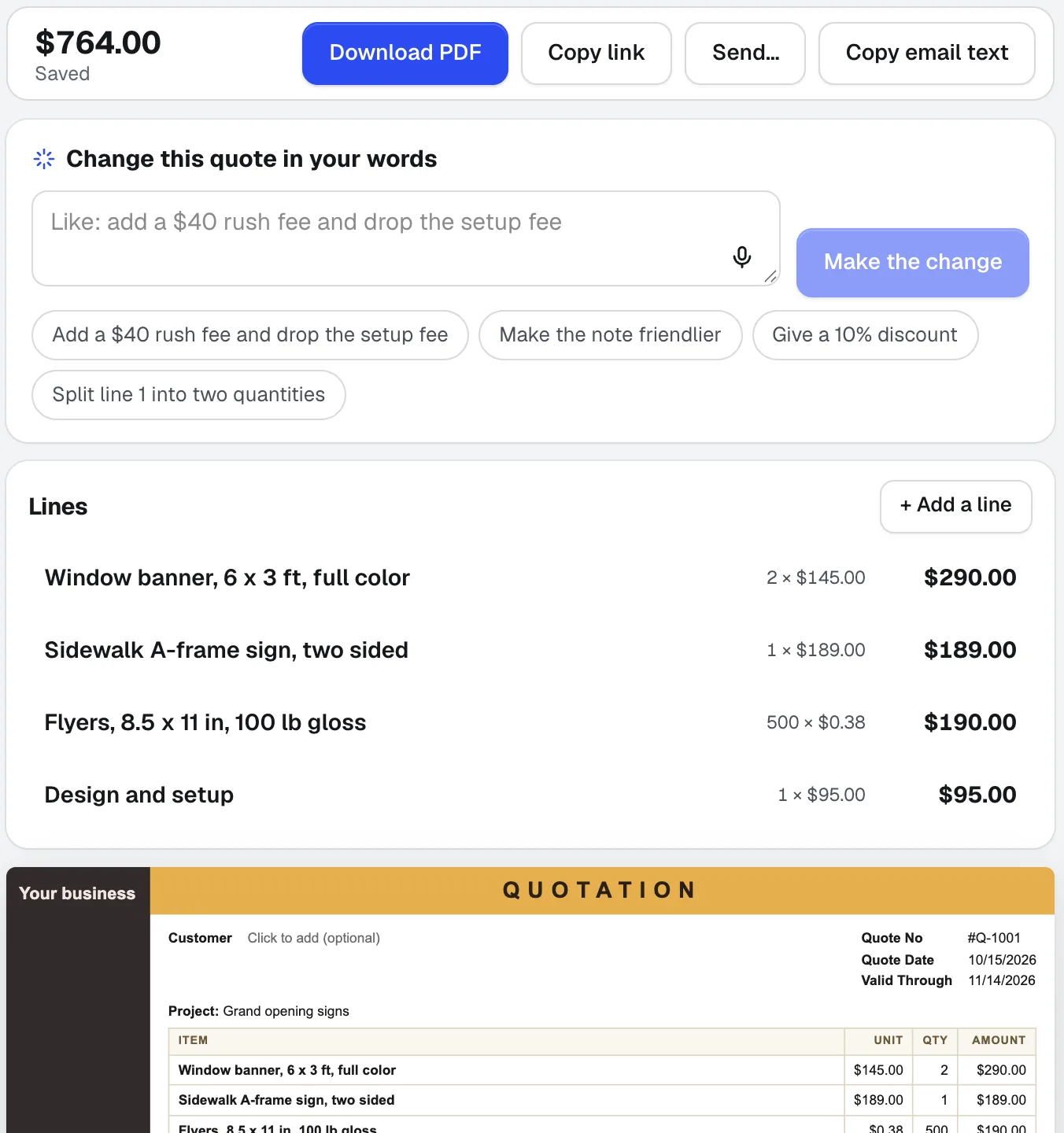
NewPaste a customer's email, dictate the job, or add a photo of a handwritten list. Quote Studio is quoting software that drafts a one-page quote using only your own prices, then you download the PDF or send a live page your customer accepts online.
Voice Kit
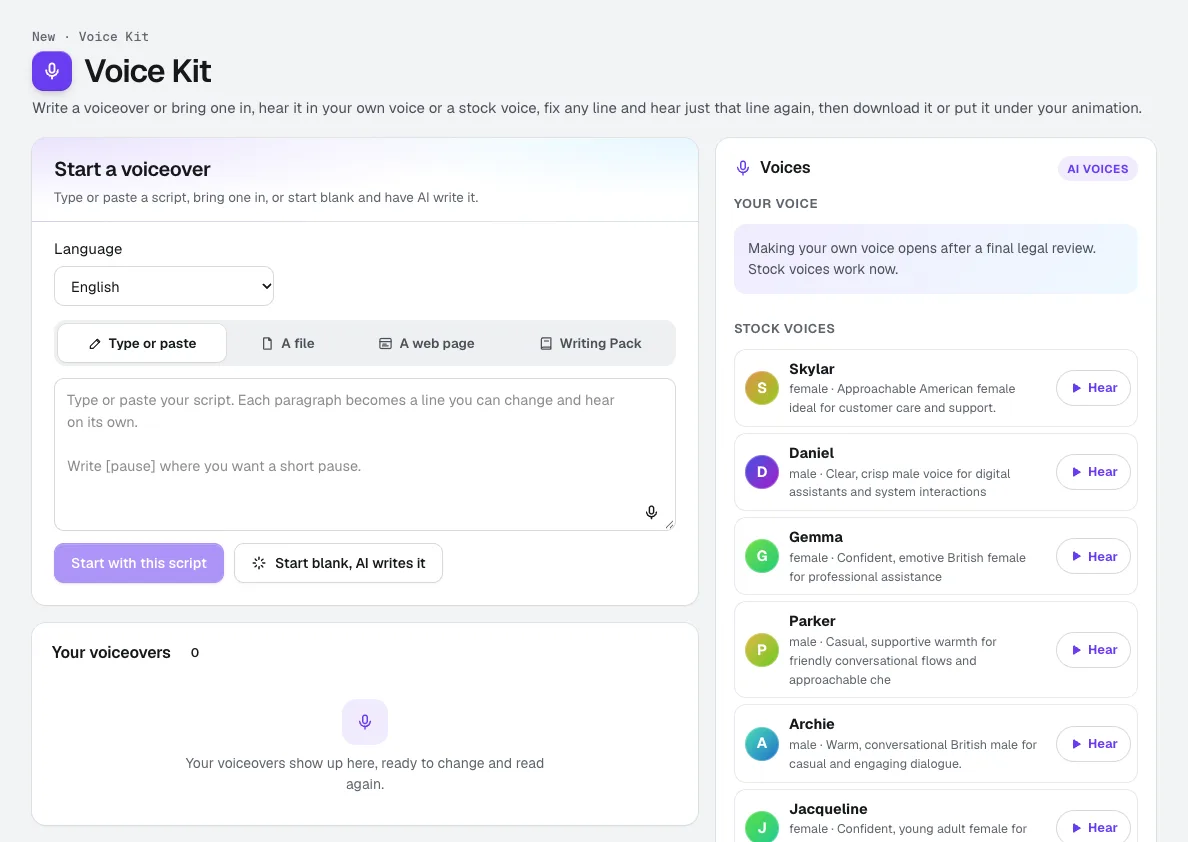
Your voiceRecord about a minute, confirm it is your own voice, and aiKit makes an AI voice of you. Read scripts, ads and animation voiceovers in it, fix any line and hear only that line again, and see the tokens before anything runs.
Video Kit
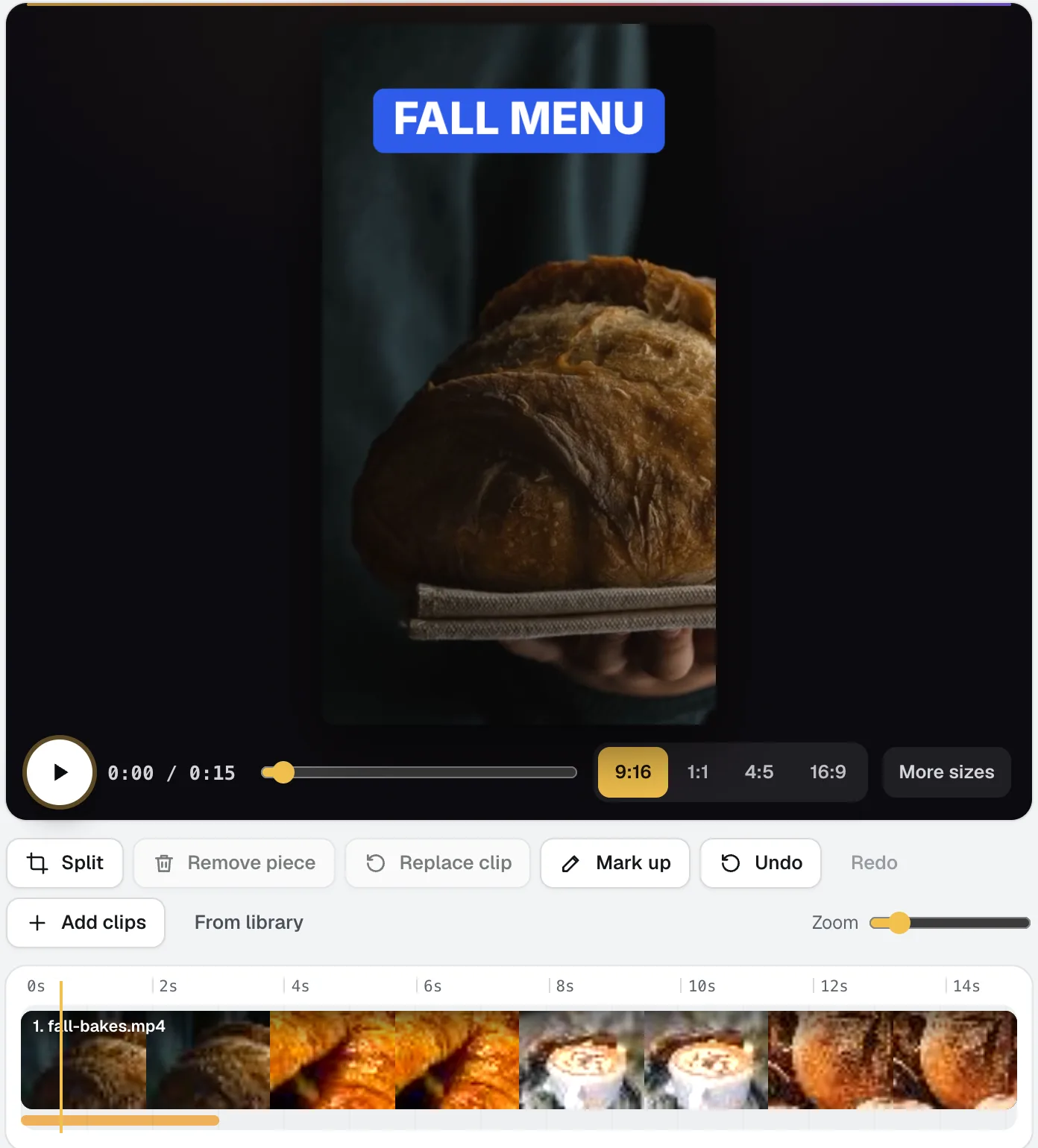
NewVideo Kit is an AI video editor for social media: drop in your clips and edit them like a document. Delete words to cut the video, remove pauses and ums in one pass, and Ask for changes in plain words. Captions, sizes, music and your logo are built in.
Use Presentation Builder today.
Make a free aiKit account and open Presentation Builder, plus every other tool in your kit.
Page last checked against the product on 2026-10-16.